Loading...
Subscribe to Our Newsletter
Get the latest updates delivered straight to your inbox.

The ultimate L&D solution for upskilling your workforce.


© 2026 SkillUp MENA, Inc. All rights reserved
Subscribe to Our Newsletter
Get the latest updates delivered straight to your inbox.
The ultimate L&D solution for upskilling your workforce.
© 2026 SkillUp MENA, Inc. All rights reserved

 Share :


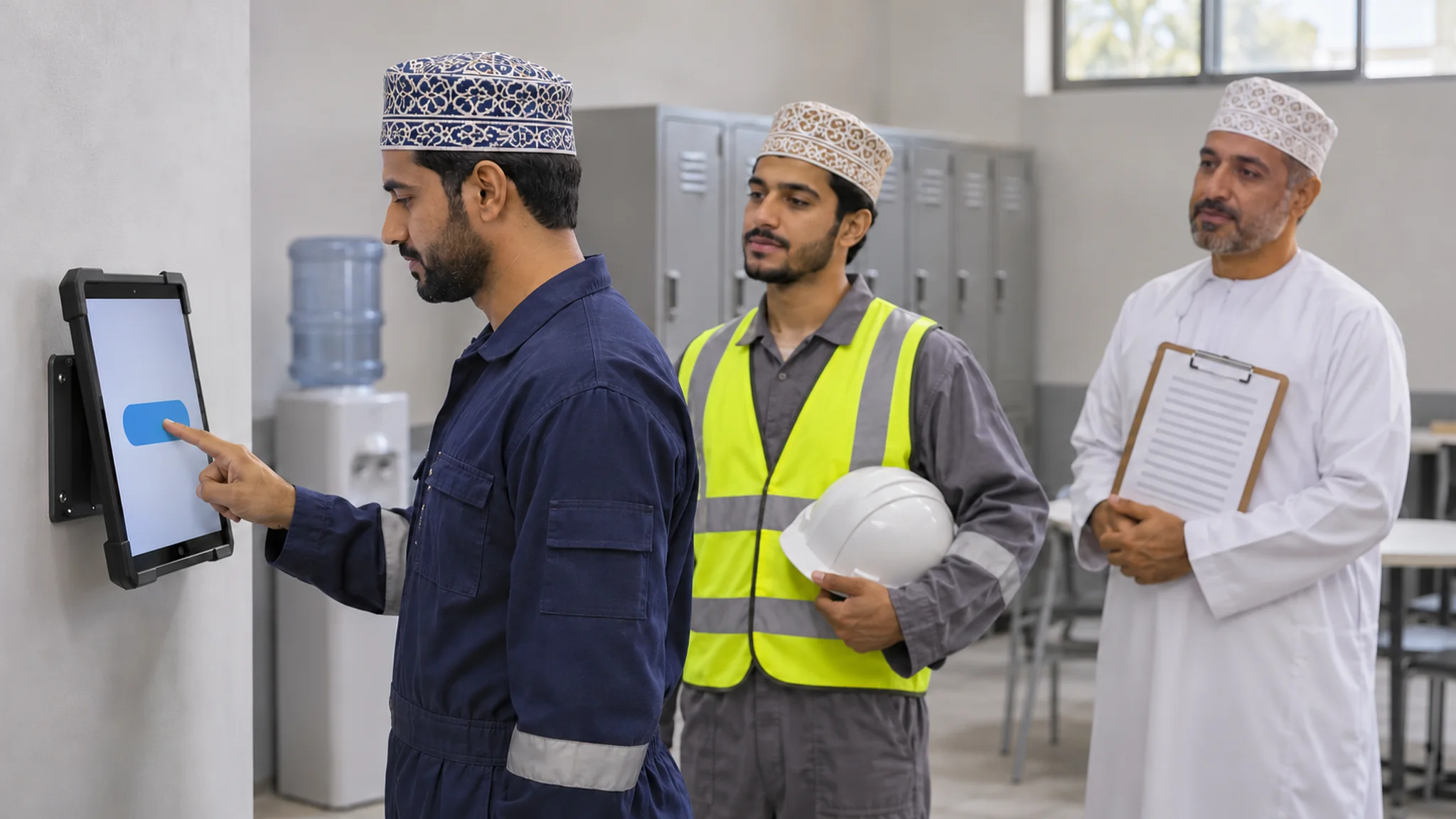
Testing an LMS on Shared Devices at Omani WorksitesAt the end of a morning shift at a warehouse in Sohar, a forklift operator opens the break-room tablet to finish his safety refresher. The course is already open, so he works through it and closes the cover. A week later, the training report shows that his colleague has completed the refresher twice and he has not completed it at all. The colleague had signed in the day before and never signed out.
Nothing was wrong with the course, and nobody was dishonest. The problem was the device. Where workers do not have their own company phone or computer, LMS software often runs on shared devices: a tablet in a site cabin, a kiosk computer in a canteen, a laptop that moves between shifts. Every training record then depends on one simple fact that is easy to get wrong: who is actually signed in.
This article sets out three tests for LMS software on shared devices at Omani worksites: sign-out that reliably happens, learner identity that matches the person doing the training, and offline sync, tested only where the provider confirms the platform genuinely supports it.
If you are still comparing options, our guide to choosing an Arabic LMS for Omani companies with small branches covers the wider decision.
Why Shared Devices Change How You Test LMS SoftwareMost demonstrations of LMS software assume one person on one device. A shared tablet breaks that assumption in three ways. A completion can be credited to the wrong person. One worker can see another’s results, certificates, or personal details. And progress can be lost when the next person signs in or the device is restarted.
Worksite conditions add to this. Workers may have a short break between tasks, wear gloves, stand in a noisy room, and hand the tablet to a colleague who is waiting. A test run by the IT team at a desk will not show what happens at shift change. Plan to test the learning management system in the same room, at the same times of day and with the same people who will use it.
Before the tests, agree on three rules with HR and IT: every worker has an individual account, nobody signs in on behalf of someone else, and shared devices are configured for shared use rather than borrowed from a manager. The tests then show whether the LMS software lets you keep those rules.
Agree with IT how each shared device is set up: a dedicated shared-use profile, updates scheduled outside shift hours, a charger that stays with the tablet, and a named person on each shift who reports problems. None of this is a feature of the LMS software, but a test of LMS software on a flat or locked tablet tells you nothing.
Test 1: LMS Software Sign-Out That Actually HappensNIST’s Digital Identity Guidelines on session management, finalized as Revision 4 in July 2025 and written for US federal systems, state that sessions should provide a readily accessible way to log off when the user’s interaction is complete, and note that logging off gives users more control over their session, particularly if the device might be accessible to others. They also describe an inactivity timeout, which ends a session after a period without activity. Both ideas apply directly to LMS software on a shared tablet.
Run these sign-out scenarios on the actual devices:
Timeouts need balance. A short inactivity timeout protects the next user, but it can also end a session while a worker is called away mid-course. W3C’s WCAG 2.2 Success Criterion 2.2.6, Timeouts, a Level AAA criterion, asks that users be warned of any inactivity period that could cause data loss, unless the data is kept for more than 20 hours. Test both sides: the LMS software ends the session quickly on a shared device, and the worker’s progress is saved and waiting when he signs in again. Our guide to testing course resume and results covers the resume step in more detail.
Test 2: Is the Learner in the LMS Software the Person Holding the Tablet?Sign-out protects the next user. Learner identity protects the record. On shared devices, the person holding the tablet is not always the person whose name is on the screen, especially at a busy shift change.
Ask the provider which sign-in options the LMS software offers for shared devices, such as a username and password, a personal PIN, or another method, and test each one with real workers. Then check that identity stays visible and confirmed:
Language belongs to the person too. Workers sharing one tablet may prefer Arabic or English, so check whether the LMS software applies each worker’s own language at sign-in or keeps the previous user’s choice on the device.
Write the identity rule into the site procedure and brief supervisors on it. If two workers share one session ‘just this once’, the LMS software cannot tell, and the report will be wrong without anyone noticing.
Test 3: Offline Sync, Only Where the LMS Software Supports ItSome worksites have weak or no connectivity in the places where workers take their breaks. It is tempting to assume that offline use will solve this. Do not assume it. First ask the provider, in writing, whether offline use is supported on the specific device type you will deploy, what is stored on the device, and how the LMS software decides whose progress it is when the device reconnects.
If the LMS software does not support offline use on your devices, plan around connectivity instead: place the shared tablet where the site Wi-Fi is reliable, or schedule training for times when workers are near it. If offline use is supported, add shared-device scenarios to your offline sync tests:
Rules for accepting late or offline completions, such as which time to record and how to prevent duplicates, are covered in our guide to recording eLearning task completion during connectivity interruptions.
A Hypothetical Example: Shared Tablets at a Sohar WarehouseThe following example is hypothetical and is included only to illustrate the method.
A logistics company runs a warehouse near Sohar with two shifts. Most workers do not have company devices, so the company places two tablets in the break room and one kiosk computer in the canteen for safety and procedure courses in its LMS software.
The training team runs a two-week pilot with twenty workers from both shifts and compares records in the LMS software with the supervisors’ paper sign-in sheet each day. Three problems appear. Closing the browser on the kiosk computer does not end the session, so one worker’s refresher is credited to a colleague. The inactivity timeout is thirty minutes, far longer than a break. And the provider confirms that offline use is not supported on the kiosk computer.
The company asks the LMS software provider to end sessions when the browser closes, sets a five-minute inactivity timeout with a warning, and confirms that progress is saved when a session ends. Workers switch to a personal PIN, and the kiosk computer is moved closer to the site Wi-Fi access point. In a second pilot week, every completion in the LMS software matches the sign-in sheet.
SummaryShared devices are a practical way to bring LMS software to workers without company phones or computers, but they put every training record at risk if nobody checks who is signed in. Test sign-out on every screen and on every way a session can end, balance short timeouts with saved progress, and make the signed-in learner visible and confirmed.
Treat offline sync as a feature to verify, not to assume, and test it with two workers on one device before relying on it. A short pilot at one Omani worksite, checked against a simple sign-in sheet, will show whether your LMS software is ready for the rest of your sites.
Click here if you want Skillup MENA to help you.